In today’s fast-paced world, ensuring the security of your home and loved ones is more critical than ever. A smart video doorbell offers an invaluable layer of protection and convenience, allowing you to monitor your doorstep from anywhere. Among the myriad options, the Belkin Wemo Smart Video Doorbell stands out as a premium choice, especially for those deeply integrated into the Apple HomeKit ecosystem. This device doesn’t just ring when a visitor arrives; it provides a comprehensive security solution designed to seamlessly integrate with your existing Apple smart home setup, offering unparalleled peace of mind.
What is a Video Doorbell and Why Do You Need One?
A video doorbell is a modern home security device featuring a camera, speaker, and microphone, typically installed at your front door. When a visitor presses the button, or motion is detected, it sends a notification to your smartphone, allowing you to see, hear, and speak to whoever is there, even if you’re not home.
The benefits of incorporating a video doorbell into your home security system are extensive. Primarily, it enhances security by enabling you to monitor your entrance, deter potential intruders, and keep an eye on package deliveries. For instance, you can receive alerts when a package arrives and communicate with the delivery person. It also offers immense convenience, providing two-way audio communication with visitors from anywhere in the world, directly from your mobile device. Moreover, advanced models can integrate with other smart home devices, giving you greater control over your home environment and allowing you to check on family members’ arrivals and departures.
Understanding the Belkin Wemo Smart Video Doorbell
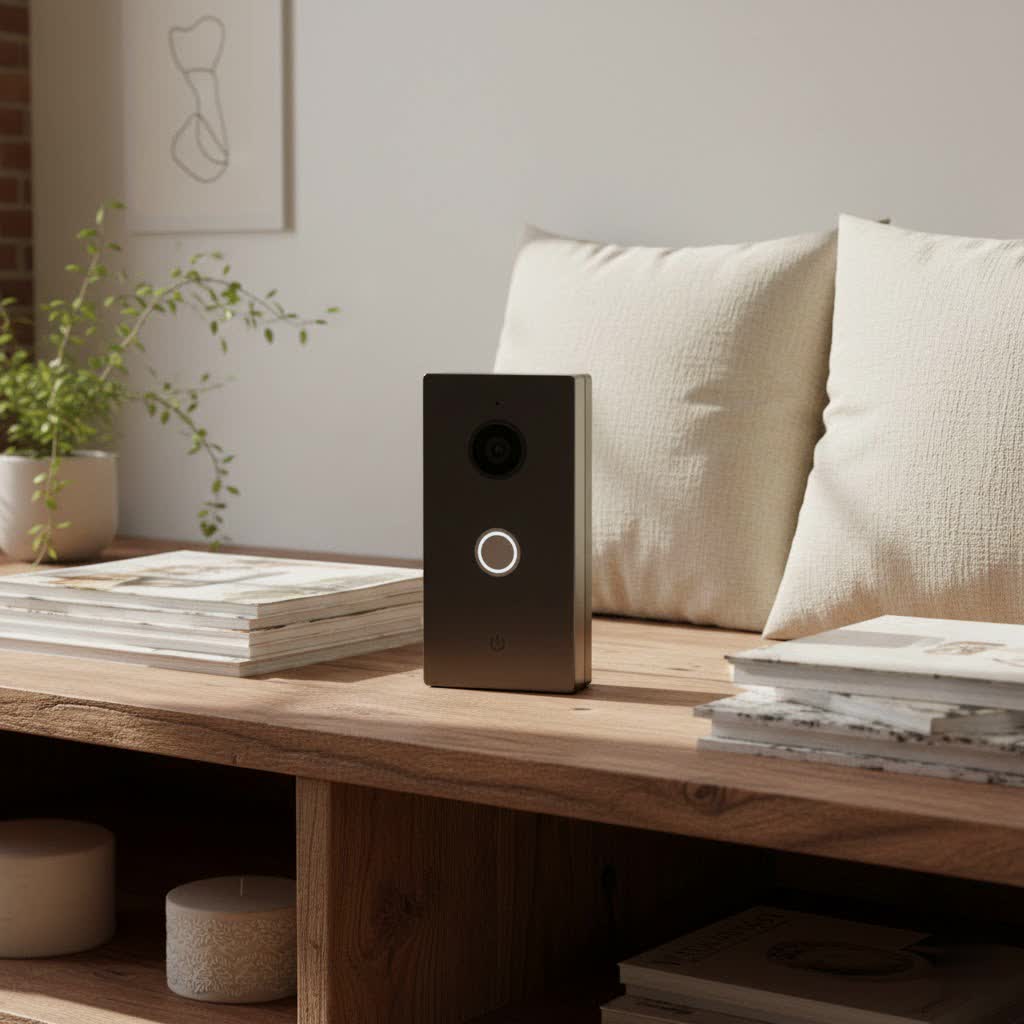
The Belkin Wemo Smart Video Doorbell is a sophisticated wired doorbell designed to elevate your home security with high-definition video and intelligent features. At its core, it functions as a robust surveillance tool, providing live video streaming, crisp two-way audio communication, and advanced motion detection directly to your Apple devices.
What truly sets the Wemo Smart Video Doorbell apart is its exclusive integration with the Apple HomeKit ecosystem. This means it works seamlessly with HomeKit Secure Video (HKSV), leveraging your iCloud+ subscription for secure, encrypted video storage without needing any additional third-party subscriptions. HKSV unlocks powerful features such as intelligent facial recognition, which can identify familiar faces from your Apple Photos library, and smart notifications that differentiate between people, animals, vehicles, and even packages. This level of integration ensures that all your recordings are stored privately and securely in iCloud, accessible only by you.
Key specifications include a high-resolution 4-megapixel sensor, capable of capturing 1200×1600 HDR-enabled video. This vertical aspect ratio is specifically optimized for mobile viewing, allowing you to see more of your doorstep, from packages on the mat to the top of your doorframe. The doorbell boasts an exceptionally wide 223-degree diagonal field of view, ensuring comprehensive coverage of your porch area. For nighttime monitoring, it is equipped with enhanced infrared night vision, providing clear visuals even in low-light conditions. Connectivity is robust, with dual-band Wi-Fi support (2.4GHz and 5GHz) for better range and faster performance. The device requires a wired installation, connecting to an existing 16-24V AC doorbell system, and is compatible only with mechanical chimes. Crucially, the Belkin Wemo Smart Video Doorbell is managed entirely through the Apple Home app, eliminating the need for a separate Wemo application, even for firmware updates.
Belkin Wemo vs. Other HomeKit Video Doorbells: A Comparison
While the Belkin Wemo Smart Video Doorbell is a strong contender, it operates within a niche market of HomeKit-exclusive video doorbells. Its primary competitors include the Logitech Circle View Doorbell and the Netatmo Smart Video Doorbell, each offering distinct features and trade-offs.
Here’s a comparative overview of these leading HomeKit-compatible video doorbells:
| Device | Resolution | Field of View | Night Vision | Storage | Price (Approx.) | Compatibility |
|---|---|---|---|---|---|---|
| Belkin Wemo Smart Video Doorbell | 1200×1600 (4MP) | 223° Diagonal | Infrared | HKSV (iCloud+) | $250 | HomeKit Only |
| Logitech Circle View Doorbell | 1200×1600 (4MP) | 160° Diagonal | Color | HKSV (iCloud+) | $300 | HomeKit Only |
| Netatmo Smart Video Doorbell | Full HD 1080p | 140° Diagonal | Infrared | Onboard (SD card) + HKSV | $300 | HomeKit & More |
The Belkin Wemo distinguishes itself with one of the widest fields of view on the market, allowing you to see a greater area around your door, including packages placed directly below the doorbell. This can be a significant advantage over competitors like the Logitech Circle View, which offers a slightly narrower perspective. Additionally, the Wemo’s price point is often more competitive than the Netatmo, making it an attractive option for budget-conscious HomeKit users.
However, the Wemo does have some limitations when compared to its rivals. Unlike the Logitech Circle View, it relies on infrared night vision rather than color night vision, which some users might prefer for more natural-looking nighttime footage. While its reliance on HomeKit Secure Video for cloud storage is a strong security feature, it lacks the onboard storage option (via SD card) that the Netatmo offers, which can be appealing for those who prefer local video backups. Furthermore, the Wemo’s strict HomeKit exclusivity means it cannot integrate with other smart home platforms like Amazon Alexa or Google Assistant, whereas the Netatmo offers broader compatibility.
Installation and Setup Guide for Your Belkin Wemo Smart Video Doorbell
Installing your Belkin Wemo Smart Video Doorbell is a straightforward process, though it requires some initial checks and a basic understanding of your home’s existing doorbell wiring.
Pre-installation Checks
Before you begin, ensure you have the following:
- Existing Wired Doorbell: The Wemo doorbell requires existing low-voltage wiring, typically 16-24V AC.
- Mechanical Chime: It is compatible only with mechanical doorbell chimes, not digital ones.
- Stable Dual-Band Wi-Fi: A reliable 2.4GHz or 5GHz Wi-Fi network is essential for performance.
- Apple Home Hub: An Apple HomePod, HomePod mini, Apple TV (4K or HD), or a dedicated iPad (always powered and at home) is required to use HomeKit Secure Video and access features remotely.
|
Our Picks for the Best Video Doorbell in 2026
As an Amazon Associate I earn from qualifying purchases.
|
||
| Num | Product | Action |
|---|---|---|
| 1 | Blink Video Doorbell (newest model) – Head-to-toe HD view, two-year battery life, and simple setup. Sync Module Core included – System (Black) |

|
| 2 | Ring Battery Doorbell (newest model), Home or business security with Head-to-Toe video, Live View with Two-Way Talk, and Motion Detection & Alerts, Venetian Bronze |
|
| 3 | Noorio Wireless Doorbell Camera with Rechargeable Battery, 2K+ Resolution, 2-Way Audio, Color Night Vision, AI Motion Detection, Smart Video Doorbell Works with Alexa, D110 |
|
| 4 | Tapo by TP-Link Smart Video Doorbell Camera Wireless with Chime, 2K with Full Color Night Vision & Spotlights, No Monthly Fee, Ring Call, 160° Ultra-Wide View, Free AI Detection, Local Storage,D210 |
|
| 5 | NariOrbi WiFi Video Doorbell Camera with Human Detection, Battery Powered, Night Vision, 2-Way Talk, 2.4G WiFi, Cloud Storage |
|
| 6 | Ring Indoor Cam, Home or business security in 1080p HD video, White |
|
| 7 | Blink Outdoor 4 – Wireless smart security camera, two-year battery life, 1080p HD day and infrared night live view, two-way talk. Sync Module Core included – 2 camera system |
|
| 8 | Ring Battery Doorbell (newest model), Home or business security with Head-to-Toe video, Live View with Two-Way Talk, and Motion Detection & Alerts, Satin Nickel |
|
| 9 | Blink Video Doorbell (newest model) – Head-to-toe HD view, two-year battery life, and simple setup. Required Sync Module not included – Add-On (White) |
|
| 10 | Blink Mini 2 — Home Security & Pet Camera with HD video, color night view, motion detection, two-way audio, and built-in spotlight — 1 camera (White) |
|
Step-by-Step Installation
- Turn Off Power: Safety first! Locate your home’s circuit breaker and turn off the power to your existing doorbell system.
- Remove Old Doorbell: Carefully unscrew and remove your old doorbell button. You should see two wires.
- Connect Wires to Mounting Plate: Attach the existing doorbell wires to the terminals on the Wemo mounting plate. The Wemo comes with all necessary hardware, including screws and a T6 Torx driver.
- Secure Mounting Plate: Screw the mounting plate securely to your wall. If necessary, use the included drill bit to create pilot holes.
- Install Power Kit in Chime Box: Access your existing chime box (usually in a hallway or living room) and install the included power kit according to Belkin’s instructions. This ensures proper power regulation for your mechanical chime.
- Attach Wemo Doorbell: Gently latch the Wemo doorbell unit onto the mounting plate and secure it with the provided security screw.
- Restore Power: Turn the power back on at your circuit breaker.
Home App Setup
Once physically installed, you’ll set up the doorbell within the Apple Home app:
- Open Apple Home App: Launch the Home app on your iPhone or iPad.
- Add Accessory: Tap the “+” icon and select “Add Accessory.”
- Scan HomeKit Code: Use your device’s camera to scan the HomeKit setup code provided in the quick start guide or on the back of the doorbell unit. Alternatively, use the NFC setup method by slowly moving your iOS device within an inch of the doorbell.
- Configure Settings: Follow the on-screen prompts to name your doorbell, assign it to a room, and configure HomeKit Secure Video settings, including:
- Activity Zones: Define specific areas for motion detection to reduce unwanted alerts.
- Facial Recognition: Enable this feature to allow the doorbell to identify people tagged in your Apple Photos.
- Chime Settings: Ensure the “Chime Doorbell” setting is enabled in the Home app if you want your mechanical chime to ring (if using iOS 14 or higher).
- Notifications: Customize smart notifications for people, animals, vehicles, and package detection.
Maximizing Your Belkin Wemo Smart Video Doorbell Experience
To truly unlock the potential of your Belkin Wemo Smart Video Doorbell, embrace its deep integration with the Apple HomeKit ecosystem and leverage its advanced features for enhanced security and convenience.
Utilizing HomeKit Secure Video
HomeKit Secure Video is the cornerstone of the Wemo doorbell’s intelligence. With an iCloud+ subscription, you gain access to:
- Smart Notifications: Receive highly granular alerts. Instead of just “motion detected,” you’ll know if it’s a “person,” “animal,” “vehicle,” or even a “package detected.” This significantly reduces false alarms and keeps you informed only when it truly matters. Notifications often include a thumbnail image of the event, allowing for quick assessment.
- Facial Recognition: Integrated with your Apple Photos library, the doorbell can identify family and friends, sending personalized notifications like “John Doe is at the door.” This adds a layer of personalization and security, helping you quickly discern known visitors from strangers.
- Secure Cloud Storage: All video recordings are end-to-end encrypted and stored securely in your iCloud account, accessible only through the Apple Home app. This ensures your privacy and data security.
- Activity Zones: Fine-tune motion detection by defining specific areas within the camera’s view that trigger alerts, ignoring busy sidewalks or neighboring properties.
Integration with the Apple Ecosystem
The Wemo Smart Video Doorbell seamlessly blends with your other Apple devices and HomeKit accessories:
- Live View on Apple TV: When someone rings the doorbell, a live video feed can instantly pop up in a corner of your Apple TV screen, allowing you to see who’s there without interruption.
- HomePod Chimes: Your HomePod or HomePod mini can act as a chime, announcing visitors with a customizable sound or even announcing who is at the door if facial recognition is enabled.
- HomeKit Automations: Create powerful automations. For example, when motion is detected at night, you could have your HomeKit-compatible porch lights turn on, or unlock a smart lock if a recognized family member is detected.
- Voice Control with Siri: Use Siri on your iPhone, HomePod, or Apple Watch to view the live feed by simply saying, “Hey Siri, show me the front door.”
Best Practices
- Optimal Placement: Ensure the doorbell is installed at an appropriate height and angle to take full advantage of its wide field of view, capturing faces clearly and monitoring the doormat for package deliveries. The included angled wedge plate can help optimize the viewing angle.
- Strong Wi-Fi Connection: A robust dual-band Wi-Fi signal at your doorbell’s location is crucial for reliable live streaming and prompt notifications. Consider a Wi-Fi extender if your signal is weak.
- Regular Firmware Updates: As the Wemo doorbell manages updates through the Home app, regularly check for and install new firmware versions to ensure optimal performance, security, and access to the latest features.
Common Issues and Troubleshooting Tips
Even the most advanced smart home devices can encounter occasional hiccups. Here are some common issues you might face with your Belkin Wemo Smart Video Doorbell and how to troubleshoot them effectively.
Doorbell Chime Not Ringing
This is a frequent concern, especially during or after installation.
- Mechanical Chime Compatibility: The Wemo doorbell is only compatible with mechanical chimes. If you have a digital chime, it will not ring. In this case, you will need to use the Chime Bypass Connector during installation and rely solely on notifications to your Apple devices.
- Power Kit Installation: Ensure the power kit (included with the doorbell) is correctly installed within your existing mechanical chime box. Incorrect wiring can prevent the chime from functioning.
- Internal Battery Charge: The Wemo doorbell has an internal battery that helps power the mechanical chime. After initial installation or a power outage, it may take up to 30 minutes for this battery to charge sufficiently. Allow this time before troubleshooting further.
- Transformer Strength: Your doorbell transformer might not be strong enough. The Wemo requires a 16V / 30VA or 24V / 30VA transformer for proper functionality. Older homes may have weaker transformers. If in doubt, consult an electrician.
- Home App Setting: In the Apple Home app (for iOS 14 or higher), check the doorbell’s settings. There’s a “Chime Doorbell” option that might be toggled off by default. Ensure it’s set to ON.
Wi-Fi Connectivity Problems
Connectivity issues can lead to missed notifications, offline status, or poor video streaming.
- Dual-Band Usage: The Wemo supports both 2.4GHz and 5GHz Wi-Fi bands. While 5GHz offers faster speeds, 2.4GHz typically has better range and penetrates walls more effectively. If you’re experiencing drops, try ensuring your doorbell is connected to the more stable 2.4GHz band if range is an issue.
- Wi-Fi Channel Interference: During setup, if your Wi-Fi network is on a crowded channel, it might interfere with the doorbell’s ability to connect. Try power cycling your router to allow it to select a less congested channel. Some advanced routers allow manual channel selection.
- Router Power Cycle: A simple router reboot can often resolve many Wi-Fi-related issues by refreshing network connections.
- NFC Setup Issues: If using NFC for setup, ensure your iOS device supports NFC and slowly move it close to the doorbell. If it fails, revert to using the HomeKit code (found on the quick start guide or on the device itself).
Video Quality Concerns (HDR)
Some users report that the HDR performance can be “lackluster,” especially in challenging lighting conditions with strong backlighting.
- Acknowledge Limitations: While the Wemo offers HDR, its performance might not always be perfect in extreme scenarios.
- Adequate Porch Lighting: For optimal nighttime video quality, consider installing additional HomeKit-compatible porch lighting that can be automated to turn on when motion is detected by the doorbell. This can provide clearer, full-color footage.
Setup Difficulties
If you encounter issues adding the doorbell to the Home app:
- HomeKit Code: Always have the HomeKit setup code readily available as a backup if NFC setup isn’t working.
- Factory Reset: As a last resort, if setup continuously fails, perform a factory reset on the doorbell (refer to Belkin’s support documentation for the exact location of the reset button, typically requiring removal from the mount). Remember this will erase all previous settings.
Rebooting Your Wemo Doorbell
For general control issues or minor glitches, a simple reboot can often resolve them. To reboot your Wemo Doorbell, you’ll need to carefully remove it from its mount and press the reset button located on the back or side of the unit.
“A common misconception with smart doorbells is that they are all plug-and-play. Understanding your home’s existing wiring and network environment is crucial for a smooth installation and reliable performance.” – Admin, Reviewbeev.com
If these troubleshooting steps do not resolve your issues, it’s always recommended to consult Belkin’s official support resources or contact an electrician, especially for persistent power or wiring concerns.
Conclusion
The Belkin Wemo Smart Video Doorbell presents a compelling solution for modern home security, particularly for those who have fully embraced the Apple HomeKit ecosystem. Its deep integration with HomeKit Secure Video unlocks a suite of intelligent features, from advanced facial recognition to precise smart notifications, all powered by your iCloud+ subscription without additional fees. With its impressive 223-degree diagonal field of view, crisp 1200×1600 HD video, and dual-band Wi-Fi connectivity, the Wemo offers robust performance and comprehensive coverage of your doorstep.
While its wired installation and exclusive HomeKit compatibility make it a specific choice, for dedicated Apple users, it represents a seamless and secure way to monitor visitors, deter intruders, and manage package deliveries directly through the familiar Apple Home app. By understanding its features, following proper installation guidelines, and leveraging available troubleshooting tips, you can maximize your experience and significantly enhance your home’s security. Are you ready to elevate your home’s security with a truly smart, Apple-centric video doorbell?
Frequently Asked Questions
Is the Belkin Wemo Smart Video Doorbell compatible with Alexa or Google Assistant?
No, the Belkin Wemo Smart Video Doorbell works exclusively with Apple HomeKit and HomeKit Secure Video. It does not support integration with Amazon Alexa, Google Assistant, or Samsung SmartThings.
Do I need a subscription for the Belkin Wemo Smart Video Doorbell?
The Belkin Wemo Smart Video Doorbell utilizes Apple HomeKit Secure Video for recordings and advanced features like facial recognition and smart notifications. This requires an iCloud+ premium subscription, but no separate, dedicated Wemo subscription is needed beyond that.
Can the Belkin Wemo Smart Video Doorbell be installed wirelessly?
No, the Belkin Wemo Smart Video Doorbell requires a wired installation. It connects to your home’s existing low-voltage doorbell wiring (16-24V AC) and is not designed for battery-powered or fully wireless operation.
What is the field of view of the Belkin Wemo Smart Video Doorbell?
The Belkin Wemo Smart Video Doorbell features an exceptionally wide 223-degree diagonal field of view, along with 178° vertical and 140° horizontal views. This allows for comprehensive coverage of your doorstep, including packages placed directly on the ground.
How does facial recognition work with the Belkin Wemo Smart Video Doorbell?
Facial recognition on the Belkin Wemo Smart Video Doorbell is part of HomeKit Secure Video. It uses your existing Apple Photos library to identify people who are tagged, sending personalized notifications when known individuals approach your door.
